Showing posts with label WebPart. Show all posts

Thursday, 2 January 2014

Deleting error webpart without using designer


          I was using a ReportViewerWebPart webpart at my home page. Sometimes during deployment this cause trouble that i could not open my home page since in some servers reports was not configured. I was resolving it using Sharepoint designer. I would open up my home page with sharepoint designer delete the webpart and now i could open my home page.

         Now i have found an alternate solution for this. We could use Web Part Page Maintenance for deleting this error web part. The solution is,

Procedure:

     Add the value ?Contents=1 at the end of your site.

     It now looks like http://yourservername/sites/yoursitename?Contents=1

     Hit Enter, that leads you to webpart maintenance page.

        
  The "Open on Page" shows error if that webpart contains error. you can select that particular webpart and delete it.

     Now the error webparts in homepage is deleted and the home page is displayed without the error webparts.

Tuesday, 24 September 2013

SharePoint 2010 - "Unable to display this Web Part"


                                  I was using web parts in a page and i had faced this problem. It was telling that "Unable to Display this web part. To trouble shoot the problem, open this Web Page in Microsoft Sharepoint Foundation - compatible HTML editor such as Microsoft Sharepoint Designer. If the problem persists contact your web server administrator. Corelation ID : 7acacbd8...  "


                                 When i look in the error log using the Correlation ID, I get this.


Error while executing web part: System.StackOverflowException: Operation caused a stack overflow.     at Microsoft.Xslt.NativeMethod.CheckForSufficientStack()     at <xsl:template match="FieldRef[@Name='Author']" name="FieldRef_header.Author" mode="header">(XmlQueryRuntime , XPathNavigator , Double )     at <xsl:template match="View" mode="full">(XmlQueryRuntime , XPathNavigator , String )     at <xsl:template match="View" name="View_Default_RootTemplate" mode="RootTemplate">(XmlQueryRuntime , XPathNavigator , String )     at <xsl:template match="/">(XmlQueryRuntime )     at Root(XmlQueryRuntime )     at System.Xml.Xsl.XmlILCommand.Execute(Object defaultDocument, XmlResolver dataSources, XsltArgumentList argumentList, XmlWriter writer, Boolean closeWriter)     at System.Xml.Xsl.XmlILComman...        7acacbd8-e819-4018-ae84-1900dd9c10e4


                               It tells me that stack over flow exception has occurred. Now when i refresh the page for the second time the web part works fine for me. The problem is only when the page is initially loaded.

                              The problem is a XSLT extension method taking long time to complete. in SP2010 SP1 the SharePoint team introduced a check in the XSLT Transformations done by data from web part and thereby in search core results webpart, that the latest extension method has to complete within 1 second of the first being invoked otherwise they throw StackOverflow Exception. The solution is changing the duration of the webparts in all forms available from 1 second to 5 seconds. To do so follow the method.

1) Locate Sharepoint 2010 Management Shell 

2) Paste the following script and enter

$farm = Get-SPFarm 
$farm.XsltTransformTimeOut = 5 
$farm.Update()

This will change the timeout from 1 second to 5 seconds which gets us some time so that StackOverflow Exception wont occur.



Saturday, 1 June 2013

Expand and Collapse the SharePoint Web parts


                                               Consider a SharePoint page containing more web parts. Given that a condition like  the web parts must be able to expand and collapse. Though the web parts contains minimize option, the following methods could be used that is considered as more user friendly.

1. Click on the Edit page Under "Site Actions".

2.Add Content Editor Web part any Zone.


3.Click on the Web part. "Click here to add content"


4.Click On "Edit Html Source" on the Ribbon.


5.Add following code.


<script type="text/javascript">
// Add the Web Part Titles here to have them opened by default
var wpsToSkip = ['Search Documents','sandbox'];
 //Add multiple Web parts to skip the Collapse
//var wpsToSkip = ['Search Documents','Pending Documents','sandbox'];


function wpExpander() {
 var theTDs = document.getElementsByTagName("TD");
 for (var t=0;t<theTDs.length;t++) {
  var id = theTDs[t].id;
  if (id.match("WebPartTitleWPQ")) {
   id = id.substr(id.indexOf("WPQ"));
   var title = (theTDs[t].innerText || theTDs[t].textContent).replace(/[\n\r]/,'');
   var strImg = "<img style='margin:6px 5px 0px 2px;cursor:hand;float:left;' ";
   if (wpsToSkip.join().match(title)) {
    strImg += "onClick='showHide(\""+id+"\",this)' src='/_layouts/images/minus.gif'>";
   } else {
    strImg += "onClick='showHide(\""+id+"\",this)' src='/_layouts/images/plus.gif'>";
    document.getElementById("WebPart"+id).style.display = "none";
   }
   theTDs[t].innerHTML = strImg + theTDs[t].innerHTML;
  }
 }
}


function showHide(i,o) {
 var wp = document.getElementById("WebPart"+i);
 wp.style.display = (wp.style.display=="") ? "none" : "";
 o.src = (o.src.match(/plus.gif/)) ? "/_layouts/images/minus.gif" : "/_layouts/images/plus.gif";
}


_spBodyOnLoadFunctionNames.push("wpExpander()");
</script>


6.Make this Web part as Hidden.


7.Save and Close the web part.

Change hyperlink to image in SharePoint


On a specific site page or page where you have the view

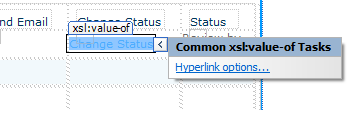
1. Click on the link in the view to follow the hyperlink ( > appears)


2. Click on “Hyperlink options


3.Click OK


4. It changes to the actual URL 


5. In the code view, the source code is now 

</xsl:when>

                            <xsl:otherwise>
              <a href="{$url}"><xsl:value-of select="$url" /><xsl:value-of select="$desc" /></a>
            </xsl:otherwise>

6.Replace the <a href="{$url}"><xsl:value-of select="$url" /><xsl:value-of select="$desc" /></a> 


with 


<a href="{$url}"><img alt=" Status" src="../SiteAssets/icons/tickmark.png" /></a>


Monday, 27 May 2013

Procedures for Creating XSLT Web part in a Page


1) Add a new web part zone found in ribbon using the Sharepoint Designer

2) On Insert ribbon you can find DataView dropdown Click and add Empty Data View

3) Now You can find a empty data view is added to the web part zone.

4) In the Empty Data view You can find Click Here to select a Data Source link available. Click it and choose the source of the data from which you wanted to add details Either List or Library.

5) Now on the Data Source details available on the right bottom corner you can find a button named "Insert Selected Field as.."
Click on it and weather you want to add single Item View or Multiple Item View.

6) Now on the Ribbon available on Options you can find Add/Remove Columns button. Click that.

7) Edit Columns popup will be available and you can find 2 sets of fields were available 

i) Available fields and

ii) Displayed Columns

8) Delete all the fields available in the Displayed Columns and Choose the fields you required from the available fields.


9) Click ok and you can see all the chosen fields available with the XSLT Web part.