Friday, 27 September 2013

PowerShell script to delete all items in a List


Deleting items from your list can be done in a easier way using the shell script. 
This is much easier when compared to deleting items from the browser. 

1) Copy & paste the following script in a notepad. 

2) Provide your site name mentioned at $SITEURL = "http://your server"

3) Provide your list name as it in browser mentioned at $oList = $web.Lists["Your List"];

4) Run Sharepoint 2010 Management Shell as administrator.

5) Copy paste the script from notepad and press enter.

6) Now all the items at particular list will be deleted.


$SITEURL = "http://your server"

$site = new-object Microsoft.SharePoint.SPSite ( $SITEURL )
$web = $site.OpenWeb()
"Web is : " + $web.Title

$oList = $web.Lists["Your List"];

"List is :" + $oList.Title + " with item count " + $oList.ItemCount

$collListItems = $oList.Items;
$count = $collListItems.Count - 1

for($intIndex = $count; $intIndex -gt -1; $intIndex--)
{
        "Deleting : " + $intIndex
        $collListItems.Delete($intIndex);
}


Tuesday, 24 September 2013

SharePoint 2010 - "Unable to display this Web Part"


                                  I was using web parts in a page and i had faced this problem. It was telling that "Unable to Display this web part. To trouble shoot the problem, open this Web Page in Microsoft Sharepoint Foundation - compatible HTML editor such as Microsoft Sharepoint Designer. If the problem persists contact your web server administrator. Corelation ID : 7acacbd8...  "


                                 When i look in the error log using the Correlation ID, I get this.


Error while executing web part: System.StackOverflowException: Operation caused a stack overflow.     at Microsoft.Xslt.NativeMethod.CheckForSufficientStack()     at <xsl:template match="FieldRef[@Name='Author']" name="FieldRef_header.Author" mode="header">(XmlQueryRuntime , XPathNavigator , Double )     at <xsl:template match="View" mode="full">(XmlQueryRuntime , XPathNavigator , String )     at <xsl:template match="View" name="View_Default_RootTemplate" mode="RootTemplate">(XmlQueryRuntime , XPathNavigator , String )     at <xsl:template match="/">(XmlQueryRuntime )     at Root(XmlQueryRuntime )     at System.Xml.Xsl.XmlILCommand.Execute(Object defaultDocument, XmlResolver dataSources, XsltArgumentList argumentList, XmlWriter writer, Boolean closeWriter)     at System.Xml.Xsl.XmlILComman...        7acacbd8-e819-4018-ae84-1900dd9c10e4


                               It tells me that stack over flow exception has occurred. Now when i refresh the page for the second time the web part works fine for me. The problem is only when the page is initially loaded.

                              The problem is a XSLT extension method taking long time to complete. in SP2010 SP1 the SharePoint team introduced a check in the XSLT Transformations done by data from web part and thereby in search core results webpart, that the latest extension method has to complete within 1 second of the first being invoked otherwise they throw StackOverflow Exception. The solution is changing the duration of the webparts in all forms available from 1 second to 5 seconds. To do so follow the method.

1) Locate Sharepoint 2010 Management Shell 

2) Paste the following script and enter

$farm = Get-SPFarm 
$farm.XsltTransformTimeOut = 5 
$farm.Update()

This will change the timeout from 1 second to 5 seconds which gets us some time so that StackOverflow Exception wont occur.


Sunday, 15 September 2013

Check if list exists using TryGetList method in SharePoint 2010


Now lets see how to check if list exists using TryGetList method in SharePoint.

Normally we will be using 

SPList list = web.Lists[listName]; 

to get a list.

But, it throws a null reference error if the list is not there(i.e., in case if it is being deleted from the site using browser). So we will be looping through the SPListItemCollection object and check if the list exists or would go for exception. In SharePoint 2010, a new method "TryGetList" is implemented to get the list and check if the list exists. Lets see how the code works out.


using (SPSite site = new SPSite("http://serverName:1234/"))
{
  using (SPWeb web = site.RootWeb)
     {
        SPList list = web.Lists.TryGetList("My List");
        if (list != null)
        {
          Console.WriteLine("List exists in the site");
        }
        else        

        {
          Console.WriteLine("List does not exist in the site");
        }
          Console.ReadLine();
     }
}

Tuesday, 13 August 2013

Sharepoint - dispform.aspx, hide button in ribbon bar


1. The ribbon bar in dispform contains some buttons. They might not need in some places due to permissions. They can be hided using javascript.


2. Use IE. Right click on the dispform and choose view source.


3. In the source we can find the end user id of the particular button
    ex.1) Ribbon.ListForm.Display.Manage.EditItem-Large is for "Edit Item"
         2) Ribbon.ListForm.Display.Manage.VersionHistory-Medium is for "Version History" etc.

    -- Choose the appropriate id of the button that you wish to hide.


4. Use this script
       <script type="text/javascript">
    function hideEdit() {
        var edit = document.getElementById("Ribbon.ListForm.Display.Manage.EditItem-Large");
        edit.style.display = "none";
    }       
    _spBodyOnLoadFunctionNames.push("hideEdit");
</script>

         -- Use individual functions for buttons that you wish to hide.
         -- don't forget to call it using _spBodyOnLoadFunctionNames.

5. On the dispform move to page edit.


6. Click Add Web part and insert content editor web part.
     

7. Click on "click here to add new content".

8. On format text ribbon choose edit html source.


9. Paste the script inside the dialog box and click ok.


10. Now edit the web part and make it hidden.


Saturday, 1 June 2013

Expand and Collapse the SharePoint Web parts


                                               Consider a SharePoint page containing more web parts. Given that a condition like  the web parts must be able to expand and collapse. Though the web parts contains minimize option, the following methods could be used that is considered as more user friendly.

1. Click on the Edit page Under "Site Actions".

2.Add Content Editor Web part any Zone.


3.Click on the Web part. "Click here to add content"


4.Click On "Edit Html Source" on the Ribbon.


5.Add following code.


<script type="text/javascript">
// Add the Web Part Titles here to have them opened by default
var wpsToSkip = ['Search Documents','sandbox'];
 //Add multiple Web parts to skip the Collapse
//var wpsToSkip = ['Search Documents','Pending Documents','sandbox'];


function wpExpander() {
 var theTDs = document.getElementsByTagName("TD");
 for (var t=0;t<theTDs.length;t++) {
  var id = theTDs[t].id;
  if (id.match("WebPartTitleWPQ")) {
   id = id.substr(id.indexOf("WPQ"));
   var title = (theTDs[t].innerText || theTDs[t].textContent).replace(/[\n\r]/,'');
   var strImg = "<img style='margin:6px 5px 0px 2px;cursor:hand;float:left;' ";
   if (wpsToSkip.join().match(title)) {
    strImg += "onClick='showHide(\""+id+"\",this)' src='/_layouts/images/minus.gif'>";
   } else {
    strImg += "onClick='showHide(\""+id+"\",this)' src='/_layouts/images/plus.gif'>";
    document.getElementById("WebPart"+id).style.display = "none";
   }
   theTDs[t].innerHTML = strImg + theTDs[t].innerHTML;
  }
 }
}


function showHide(i,o) {
 var wp = document.getElementById("WebPart"+i);
 wp.style.display = (wp.style.display=="") ? "none" : "";
 o.src = (o.src.match(/plus.gif/)) ? "/_layouts/images/minus.gif" : "/_layouts/images/plus.gif";
}


_spBodyOnLoadFunctionNames.push("wpExpander()");
</script>


6.Make this Web part as Hidden.


7.Save and Close the web part.

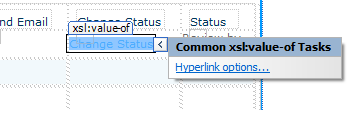
Change hyperlink to image in SharePoint


On a specific site page or page where you have the view

1. Click on the link in the view to follow the hyperlink ( > appears)


2. Click on “Hyperlink options


3.Click OK


4. It changes to the actual URL 


5. In the code view, the source code is now 

</xsl:when>

                            <xsl:otherwise>
              <a href="{$url}"><xsl:value-of select="$url" /><xsl:value-of select="$desc" /></a>
            </xsl:otherwise>

6.Replace the <a href="{$url}"><xsl:value-of select="$url" /><xsl:value-of select="$desc" /></a> 


with 


<a href="{$url}"><img alt=" Status" src="../SiteAssets/icons/tickmark.png" /></a>


Friday, 31 May 2013

Change the Web URL from Alternate Access Mappings using C#


There are many types of Zones available in the SharePoint access mappings.
  • Default
  • Intranet
  • Extranet
  • Internet
  • Custom 

Using this code you can change the alternate access mappings from Default to Internet.


            string webUrl = string.Empty;
            using (SPWeb web = workflowProperties.Site.RootWeb)
            {
                using (SPSite site = web.Site)
                {
                    foreach (Microsoft.SharePoint.Administration.SPAlternateUrl altUrl in site.WebApplication.AlternateUrls)
                    {
                        if (altUrl.UrlZone == Microsoft.SharePoint.Administration.SPUrlZone.Internet)
                            webUrl = altUrl.IncomingUrl .ToString() + site.ServerRelativeUrl.ToString();
                        //fullweburl = webUrl + site.ServerRelativeUrl.ToString();
                    }
                }
            }